

Getting Started with Embrilliance Express: Download & Installation
Downloading the software takes just a few clicks, and the best part—it’s entirely free. Start from the Embrilliance website’s Express Mode page and choose your system.
(this post may contain affiliate links -at no cost to you)

The video starts on the Embrilliance website, introducing the software and its Express mode.
Once on the page, click the Express Mode (Free) link to open the download options.

Click on the ‘Express Mode (Free)’ link to begin downloading.
Make sure to select either Mac or Windows, depending on your computer’s setup. The tutorial uses Windows, but both platforms install easily.
Download options for both Mac and Windows appear on the Embrilliance Express page.
Mastering the Lettering Tool: Typing and Basic Formatting
After installation, the software opens to a blank workspace—your creative blank slate.
(This post may contain affiliate links -at no cost to you)

The blank workspace—your canvas for embroidery lettering.
The letter “A” icon activates the lettering tool, which drops a default “ABC” placeholder directly onto the canvas.

The critical ‘A’ icon in the toolbar is the start of creating letters in your Embrillance Software.
Inside the Properties box on the right, type your chosen phrase—“Happy Birthday,” “Love ” anything you like—and watch it appear instantly.
 Typing custom text into the ‘Properties’ panel.
Embrillance comes preloaded with the built-in font Block, ideal for testing this amazing font tool.

Start typing the word you want to see in the text field.

 Customizing Your Design: Adjusting Text and Saving Files

Lettering placement defines your outcome. You can grab those little green squares and slide individual letters for spacing perfection.

Manually position individual letters for a more personalized flow.
This touch adds personality—especially crucial for curved monograms or connected scripts.
When you’re pleased with the look, save the project. Choose File → Save Stitch and Working File and assign a name.

In the dialog box, set the machine embroidery format for your machine —PES (Brother/Babylock) or DST (Happy machines) are common options.
Creating backups by exporting to a USB drive helps transfer designs safely to devices like a
Expanding Your Font Library: Loading Custom Fonts
The highlight of Embrilliance Express is adding purchased fonts, usually in.BX format. These install effortlessly by dragging the file right into the open software window.

Once installed, these appear inside your Alphabet Tool pane next to the default fonts.
Some viewers asked whether drag-and-drop is the only method. The video only demonstrates this approach, so additional options aren’t shown—meaning drag-and-drop remains the verified process.
If you’re running large lettering designs, compatibility with tools like mighty hoops ensures your material stays flat while stitching multi-line text.
Working with New Fonts: Script Flow and Final Touches
Now the fun truly begins—testing your custom fonts. In the tutorial, the creator selects a newly installed “Stitchtopia Audry” script font from the Style dropdown.

Confirm the new font appears in the dropdown list.
After typing “love,” the delicate curves of cursive text appear.

For realistic results, manually nudge each letter until the script flows naturally.
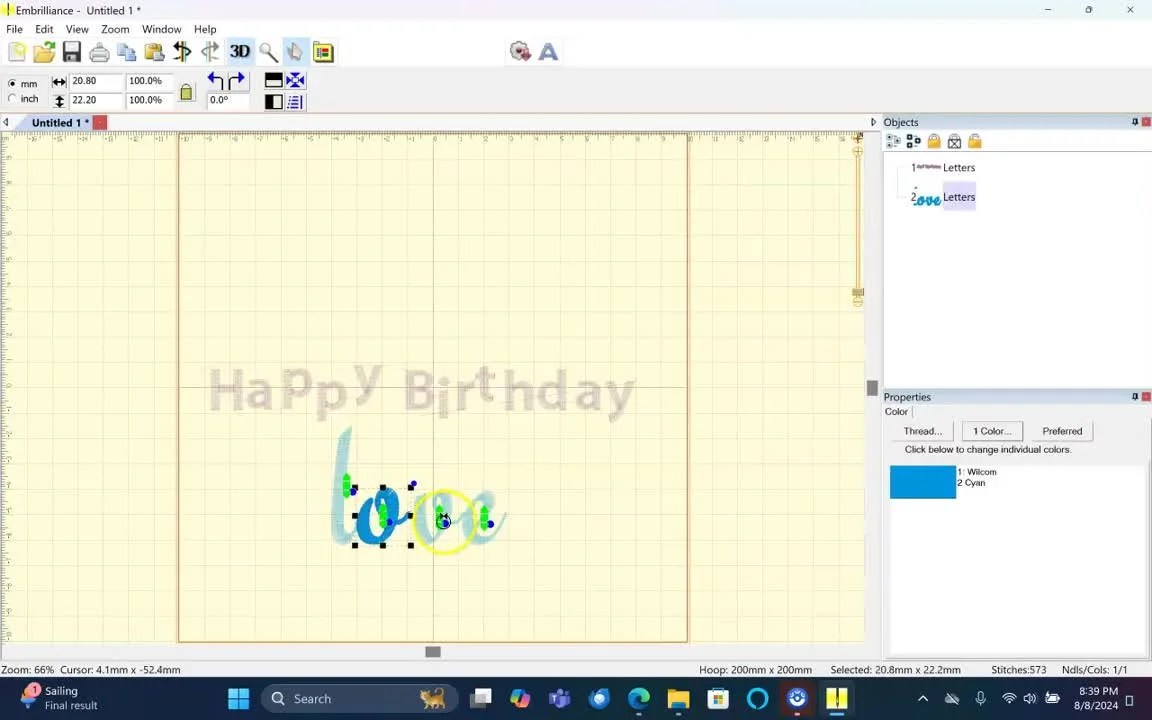
Slight overlaps eliminate awkward gaps between letters.
Once satisfied, save just as before—“Save Stitch and Working File”—ensuring it’s ready for your specific machine.

From the Comments:Several users mentioned using fonts saved as PES files, wondering if those could import. The video didn’t cover converting or importing PES-font formats—only installing.BX files. If drag-and-drop fails, check that your font format truly ends in .BX.
Why Embrilliance Express is a Must-Have for Crafters
Free, fast, and frustration-free—that’s Embrilliance Express. It strips away complexity while keeping enough features to satisfy hobbyists. Whether you’re monogramming baby gifts or creating lettering for hoop frames such as magnetic embroidery hoop, this starter software delivers pro polish.
Why Embrilliance Express is a Must-Have for Crafters
Free, fast, and frustration-free—that’s Embrilliance Express. It strips away complexity while keeping enough features to satisfy hobbyists. Whether you’re monogramming baby gifts or creating lettering for hoop frames such as magnetic embroidery hoop, this starter software delivers pro polish.
Beginners love its drag-and-drop font management, while seasoned embroiderers use it for quick edits and lettering. Paired with reliable equipment—say, a barudan magnetic hoops system for professional setups—it turns even small side projects into smooth, elegant finishes.
When you combine Embrilliance Express’s clean workflow with quality magnetic embroidery hoops for brother or similar accessories, you’ll have everything you need for frustration-free embroidery lettering. One free program, endless personal expression.