

Turn a design you already own into something personal. Add a name, arrange it with your design, and save the finished layout for your embroidery machine.
In this example, we’re adding Roman beneath an “I love you to the moon and back” design. Follow the process from finding the design to preparing your thread colors.
1. Find a design you already own
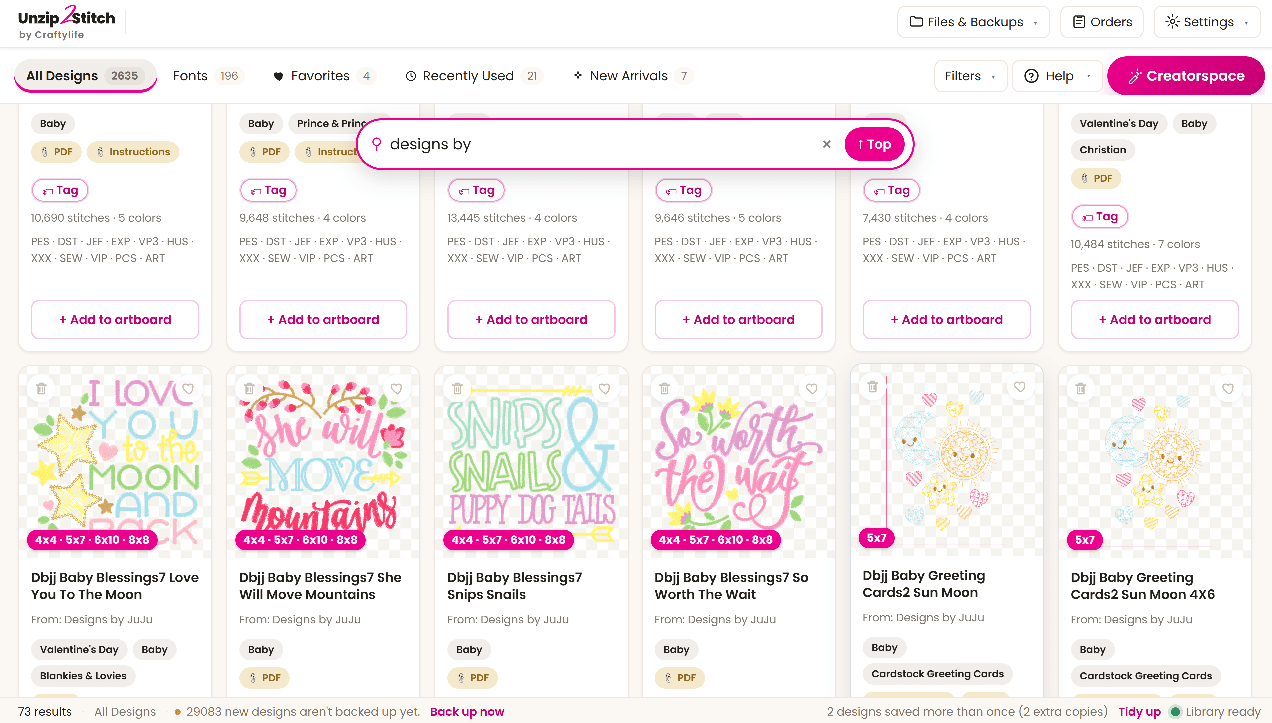
Open your Unzip2Stitch design library and search for your design. Here, searching “designs by” brings up matching designs, including the moon-and-back design we’ll personalize. Choose your design and select Add to artboard.
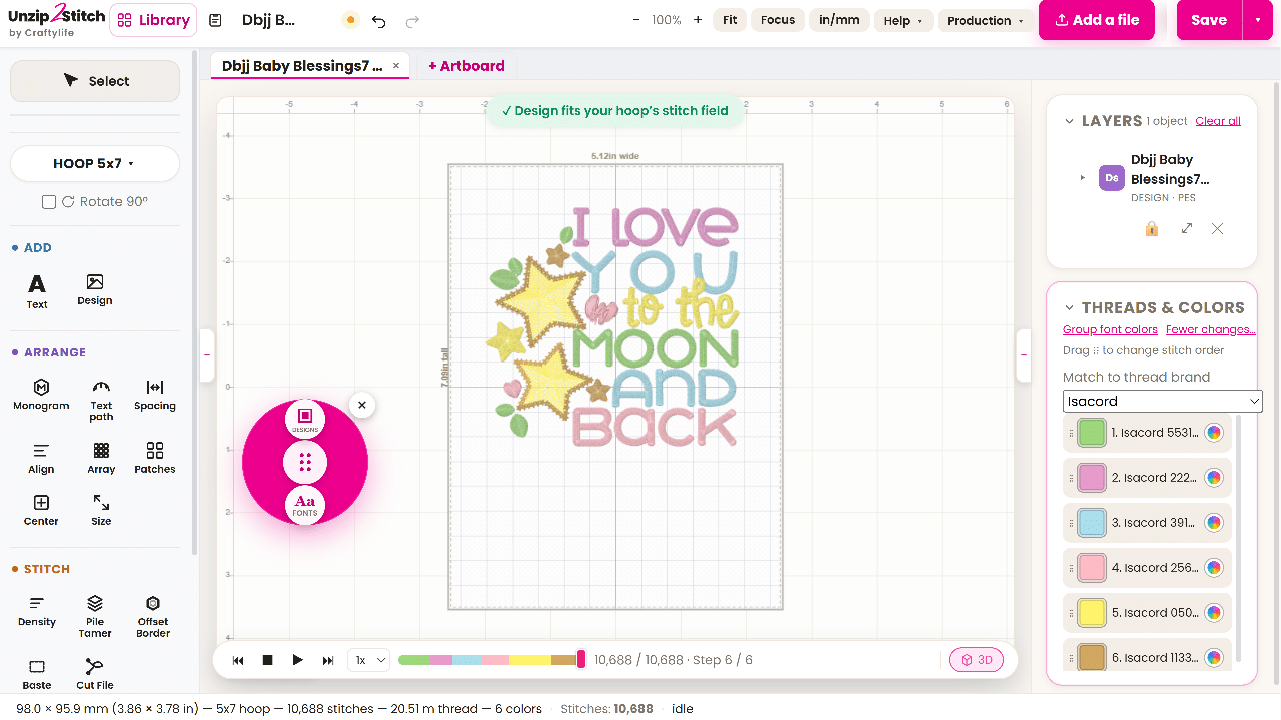
2. Open the design and select your hoop
Select the hoop you plan to use. This example starts with the original “I love you to the moon and back” design inside a 5×7 hoop, leaving room beneath it for a name. Choose a design and alphabet size that leave space for the complete project.
3. Choose an alphabet and type the name
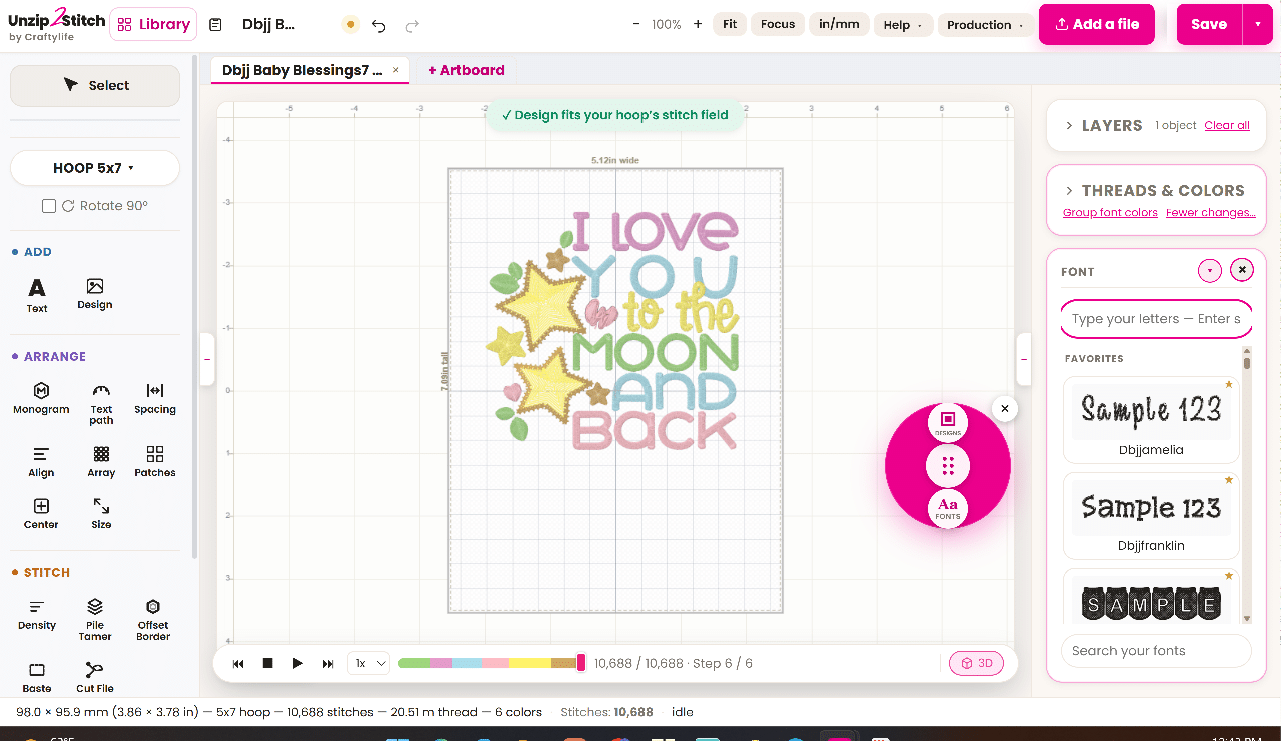
Open the font picker to browse visual alphabet previews, search your fonts, or choose a favorite. Select your alphabet and enter the name. Instead of opening and placing each letter separately, build the name with the typing tool.
Your alphabet doesn’t need a BX version. Unzip2Stitch automatically recognizes supported stitch-file alphabets from different digitizers, regardless of which digitizing software created them. If your purchase includes BX and individual letter files, use the supported stitch-file version. Unzip2Stitch catalogs BX files but cannot type with them.
4. Arrange the name and check the fit
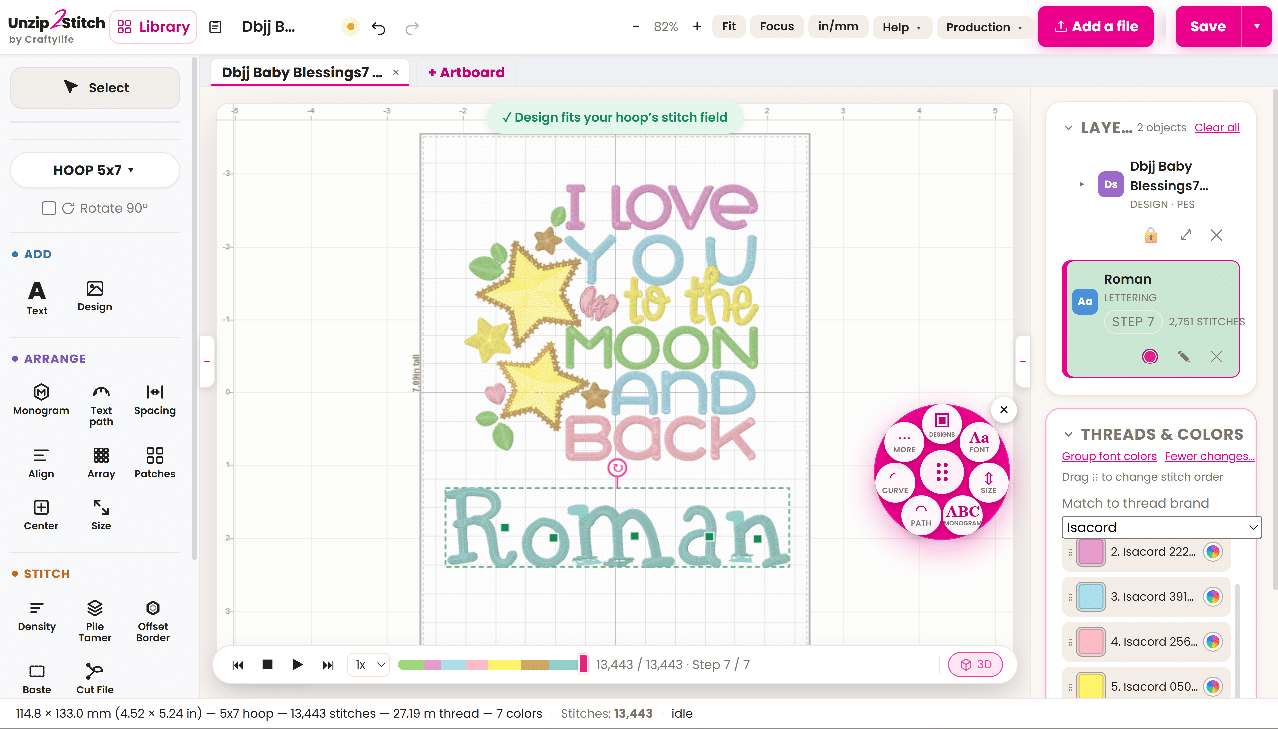
Position the name beneath your design. Adjust placement and spacing until the complete layout looks balanced. Use a suitable alphabet size and follow the digitizer’s sizing guidance.
Our example adds Roman. The design and lettering appear as two objects in the Layers panel. Together, they measure approximately 4.52 × 5.24 inches, and Unzip2Stitch confirms that the layout fits the selected hoop’s stitch field. Check the entire layout before saving.
5. Save for your embroidery machine
Save the combined design in a format supported by your machine. Keep an editable project copy if you want to return later and change the name or arrangement. Before stitching your finished item, test the design on comparable fabric with the stabilizer you plan to use.
6. Review your production sheet before stitching
Open the production sheet to see which parts stitch in each color. Follow the sequence from top to bottom and check the stitch count for each step. Select Print / Save PDF to keep the sheet beside your machine.
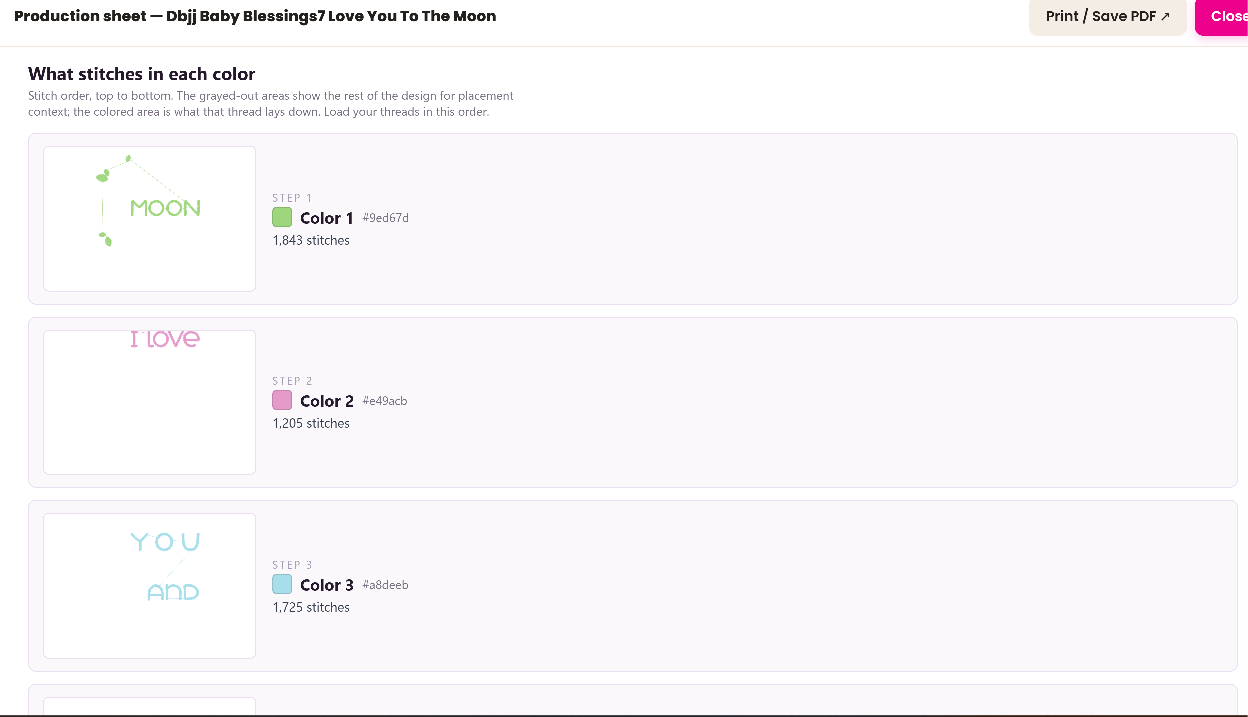
Example design shown: Designs by JuJu, as identified in the library. Design and alphabet files are purchased separately from their creators.
Which edition do I need?
Free Lettering Edition: Browse your font library and type with supported stitch-file alphabets.
Full Unzip2Stitch Studio: Combine the lettering with an existing embroidery design, arrange the project, and save the combined result.
Learn more about typing with embroidery fonts you already own or combining embroidery designs.
Use the designs you love. Choose your alphabet. Make it personal.