
You’ve typed a name for your embroidery project—but it’s too big for the space. Can you simply shrink it?
Sometimes. But lettering that looks good on screen may stitch differently after resizing.
The easiest starting point is to choose a size already included with your embroidery alphabet.
Start with the sizes included with your alphabet
Many embroidery alphabets come in several sizes, such as ½ inch, ¾ inch, and 1 inch. Choose the supplied size closest to what your project needs.
These sizes are the creator’s intended starting points. Look for photos of actual stitched lettering and follow any instructions included with your purchase.
For a big size change, choose another included size. Stretching a ¼-inch alphabet into 1-inch lettering—or shrinking a large alphabet into tiny lettering—may give disappointing results.
What if the name doesn’t fit?
Before resizing, try these simple options:
- Choose a smaller included size. Check which sizes came with your alphabet.
- Try a narrower font. Some lettering styles naturally take up less space.
- Adjust the spacing. Bring letters a little closer together while keeping the name easy to read.
- Use two lines. A first and last name may fit better on separate lines.
- Choose a larger hoop, if your machine supports it.
Sometimes changing the layout is all you need.
Doesn’t embroidery software handle resizing?
Some software adjusts the stitches when you change the size. That can help, but it doesn’t guarantee that every alphabet will stitch well at every size.
There isn’t one resizing percentage that works for every font. Follow the alphabet creator’s instructions and test any changes before using your finished item.
Being able to change the size on screen doesn’t guarantee how it will sew.
Find your font sizes in Unzip2Stitch
Unzip2Stitch’s free Font Library catalogs your supported embroidery alphabets so you can see what you already own and which sizes are available.
Choose your alphabet, select an included size, and type your name. Adjust the letter spacing while viewing your lettering.
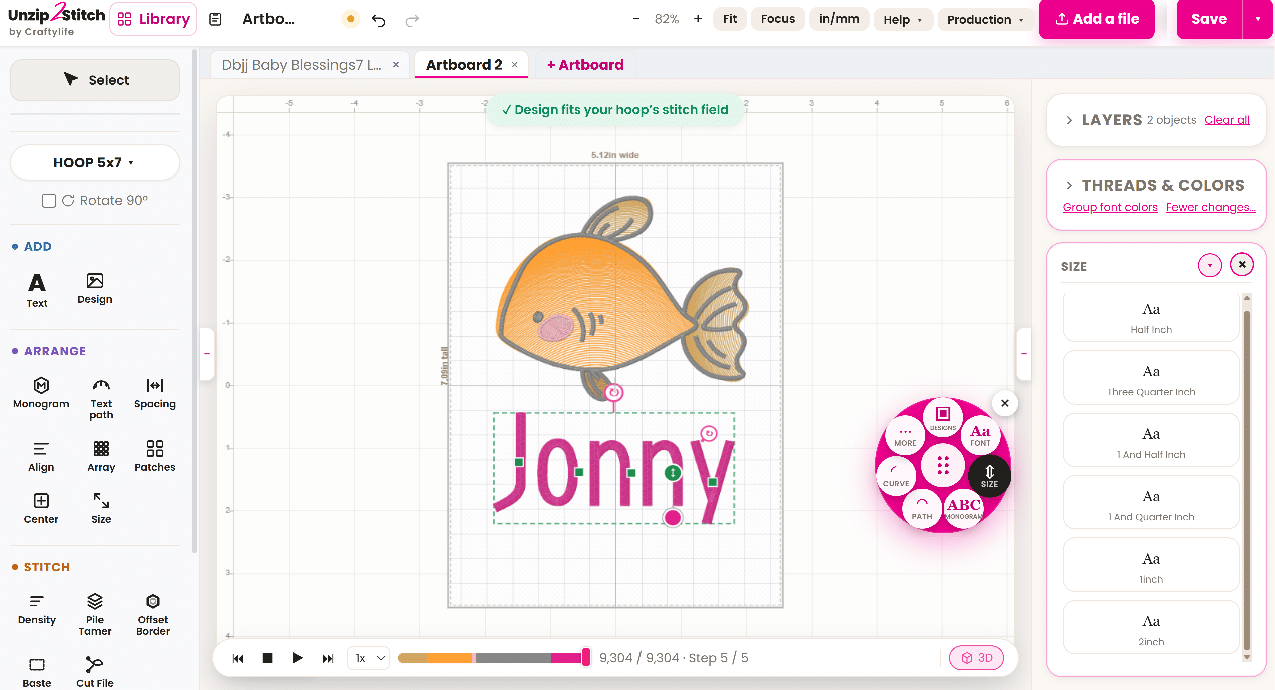
When combining lettering with a design in the full studio, check that the entire project fits your machine’s embroidery area.
The hoop-fit message tells you it fits. A test stitchout tells you how it sews.
What does the red dot on a font card mean?
A red dot means Unzip2Stitch has flagged something worth checking before you stitch.
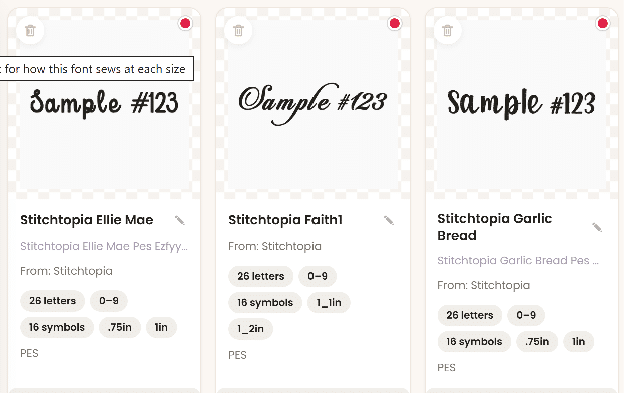
Click the red dot to see information about the alphabet’s available sizes and what to watch for when testing.
After stitching a sample, you can record that the size worked for you and save notes about your fabric, stabilizer, needle, or other helpful details.
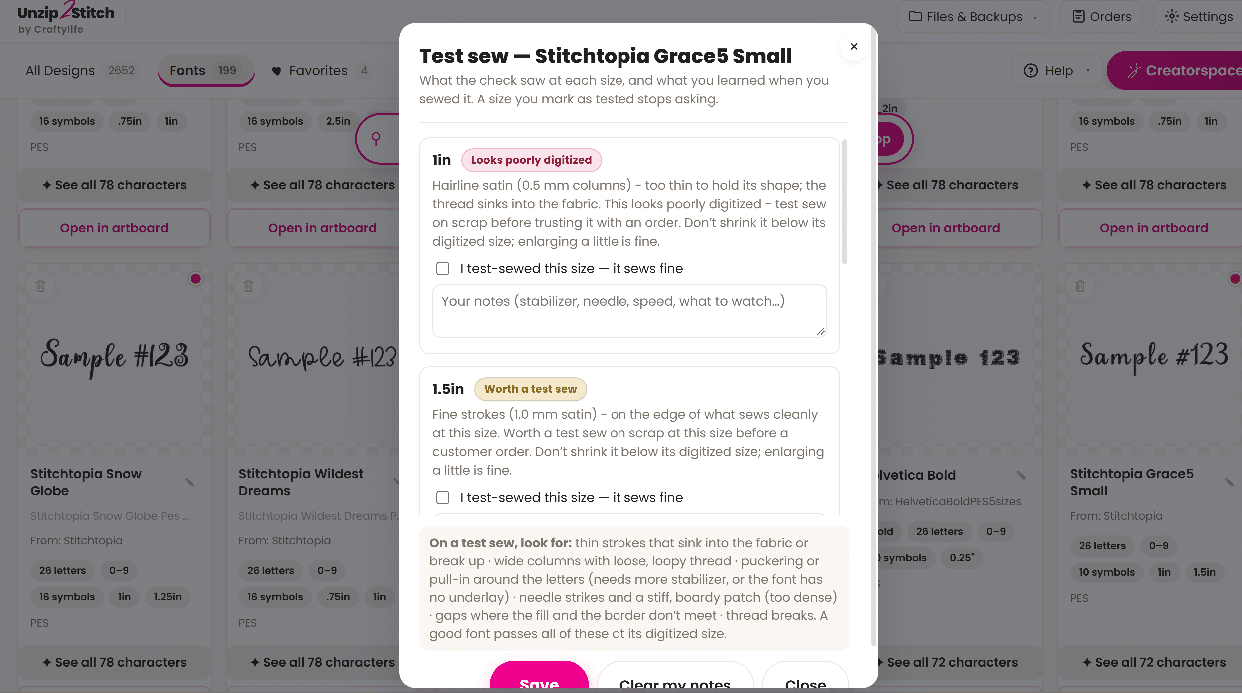
The next time you use that alphabet, your notes help you remember what worked.
A red dot is a reminder to check and test. It doesn’t automatically mean you can’t use the font.
Always stitch a sample first
Before stitching a special gift or customer item, test the lettering on similar fabric with the stabilizer you plan to use.
Check three things:
- Can you read the name clearly?
- Do the letters look clean and easy to recognize?
- Is the fabric lying smoothly around the lettering?
If the sample doesn’t look right, check the instructions included with the alphabet. You can also contact the creator with a clear photo, the font size, and the materials you used.
A screen preview is useful, but seeing the lettering stitched on fabric is the best way to check your result.
Make your next lettering project easier
Start with an included alphabet size, adjust your layout, and stitch a sample before using your finished item.
With your alphabets cataloged in one visual library—and your test notes saved—you’ll have less guessing to do next time.
Ready to combine lettering with a design? See how to add a name to an embroidery design.